How to publish a policy
After you finish creating, editing, or restoring a Policy:
- Select Publish policy. You must have at least one edited, added, or removed rule to submit changes.
- A limited summary of the submitted policy details appears.
- Select Publish policy for your specific policy type (e.g., Transfer) to send the Policy to the assigned approval group for approval.
Approving a new or edited Policy
Important
Policy approvers must have the latest version of the Fireblocks mobile app installed to ensure full functionality and access to approval workflows. Additionally, if the policy is approved automatically by an API user, the Cosigner associated with the API user must be updated to the latest version.
After you submit a new or edited Policy, the assigned approval group receives Fireblocks mobile app notifications. You can open this notification to review a summary of the Policy details. Users in the group will also see the Pending approval indicator in the Console.
To approve the new or edited Policy:
- In the Fireblocks Console, go to Policies and select the new or edited Policy. The yellow Pending approval badge indicates there are changes to review.
- Select Review changes. Rules will appear the same as when you are viewing draft changes.
- Select Approve policy.
- Complete the approval process using your Fireblocks mobile app. The Policy becomes active immediately.

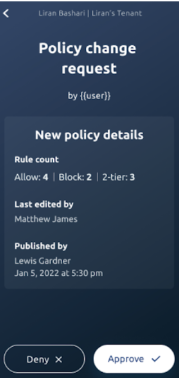
If you select Deny changes, you can enter a reason that will be logged in the Audit Log.
When Policy changes are denied, the submitter can resubmit Policy changes based on the feedback in the denial notification.
- When the submitter enters the Policy Editor, the submitter’s denied changes still appear in the Policy Editor so they can pick up where they left off.
- After submitting a new request, the yellow Pending approval badge appears.
- The submitter can’t draft more edits until the new request is approved or denied.
Publishing multi policies in a single request
As of May, 2026, Fireblocks is gradually rolling out a multi-type policy publish flow. After editing your policy draft, you can now publish multiple policies in one click:
- Select Publish Policy.
- Select Multi-Publish in one request and then select the policy types you want to publish.
- Select Add.
- Select Publish to publish the policy.
Note:
Administrators can only approve or reject policies that were sent for publication.
See the following images as an illustration of the publication sequence:
Next steps
- Edit a Policy - Make changes to existing rules when needed
- Policy Best Practices - Follow recommendations for effective Policy management
- Policy Rule Parameters - Reference guide for all available parameters
- Policy Rule Examples - Review some common use cases
- Policy Rule Error Messages - Troubleshoot error messages when creating or editing rules